Item Set Hierarchy
Item Sets can be nested to form a hierarchy, or tree layout of sorts. When The AAC was using Omeka, Item Sets were organized using a nested title system (which will make sense shortly). Fortunately for this guide, that title system will help visualize how the parent-child system works.
Additions to the List View
In the Item Set list view, there is an additional filter option named "Root Only". This filter shows Item Sets that do not have a parent. On the front-end, the root Item Sets are what the user will see on the Collections page.
Detail View
In the image below, the three pertinent sections are boxed in red. In the content area (center) there are the "Parent Item Set" and "Child Item Sets" sections. In the right sidebar, there are the 'Add Child Itemset' and "Set Parent Itemset" action buttons.
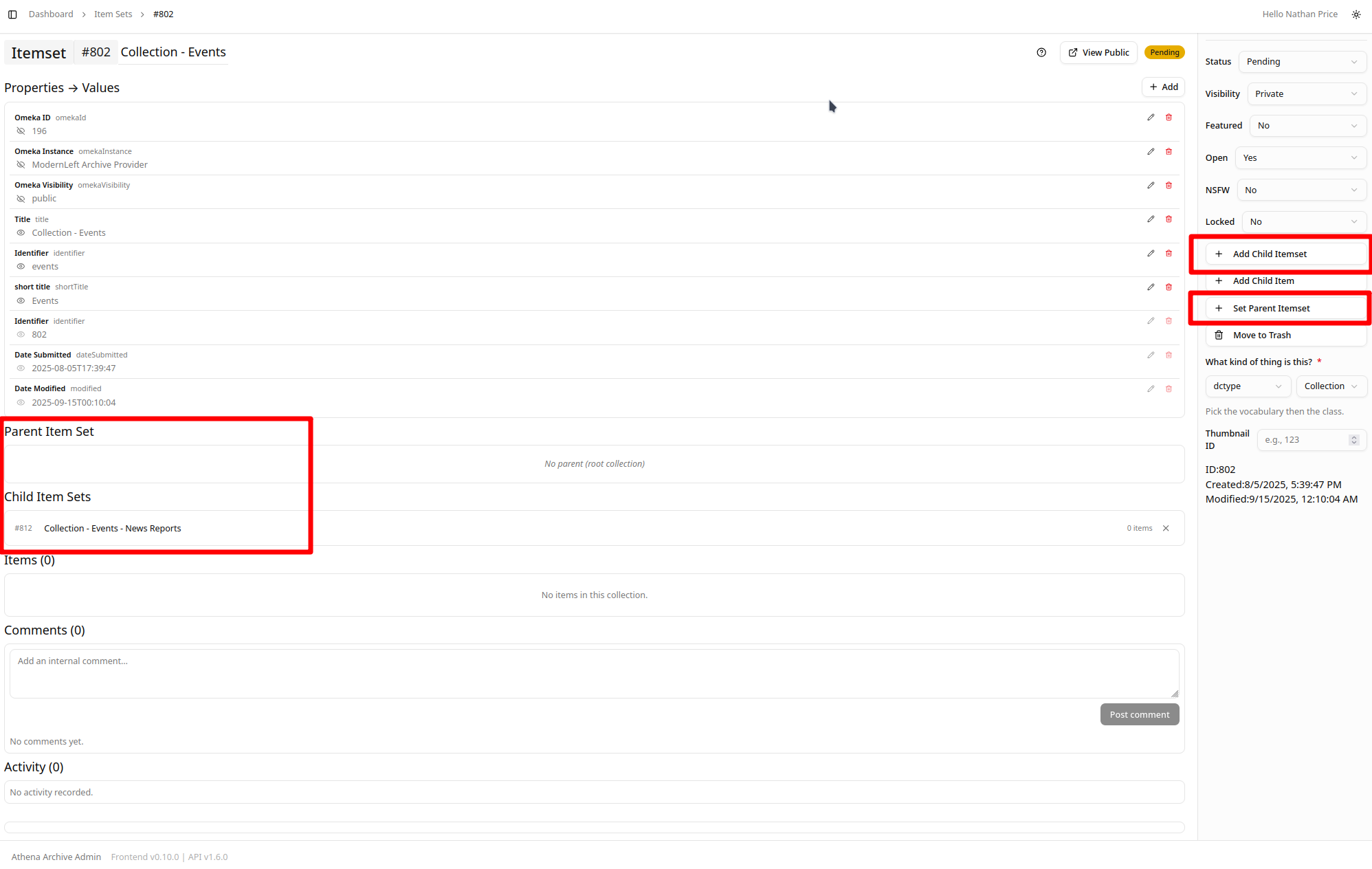
The idea is simple. An Item Set may only have one parent, but may contain as many child, or sub-Item Sets, as one sees fit. In the case of The AAC, which we are observing, this Item Set is named "Collection - Events" and already contains the child Item Set "Collection - Events - News Reports".
In Omeka-S, there was no native system like this, and this "Collection - Topic - SubTopic - SubSubTopic...." was the solution that was settled on. With the migration to Athena, this solution comes to our benefit.
Adopting Children
The first thing to do is to click the "Add Child Itemset" button. A new dialog will appear which will look like this:
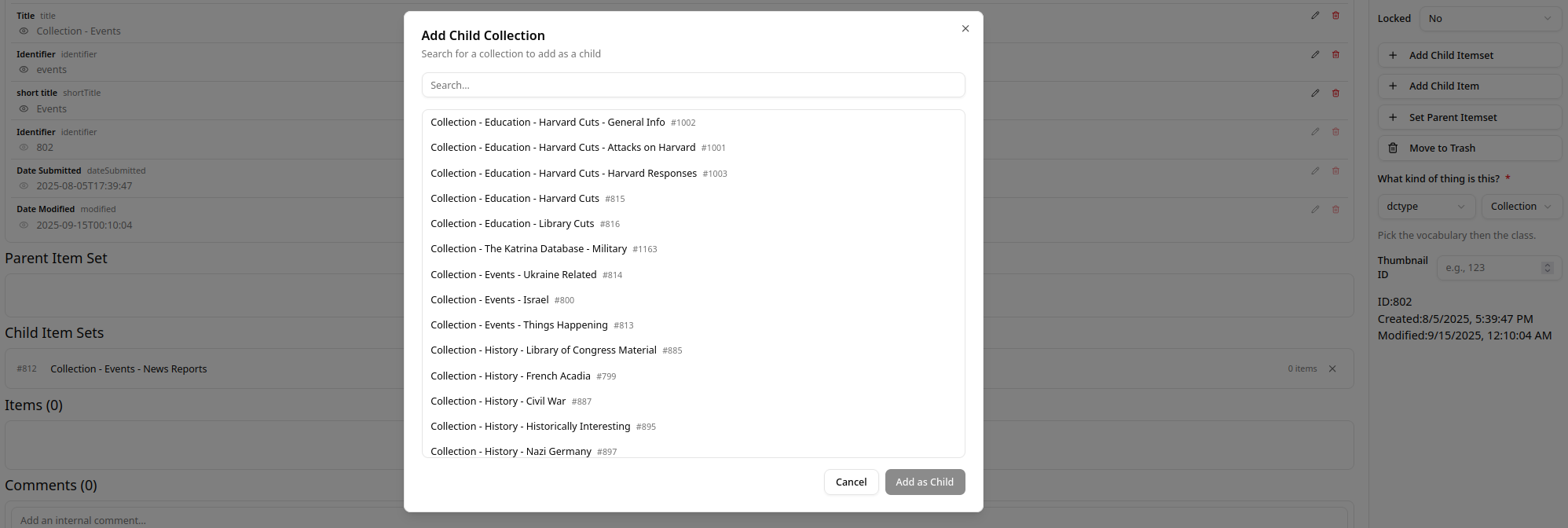
Now we want to add the next level down in our hierarchy which will be in the form of "Collection - Events - SubTopic". The sub-sub-topics are meant to be children of the sub-topics.
We will now use the "Search" field to filter out our Item Sets.
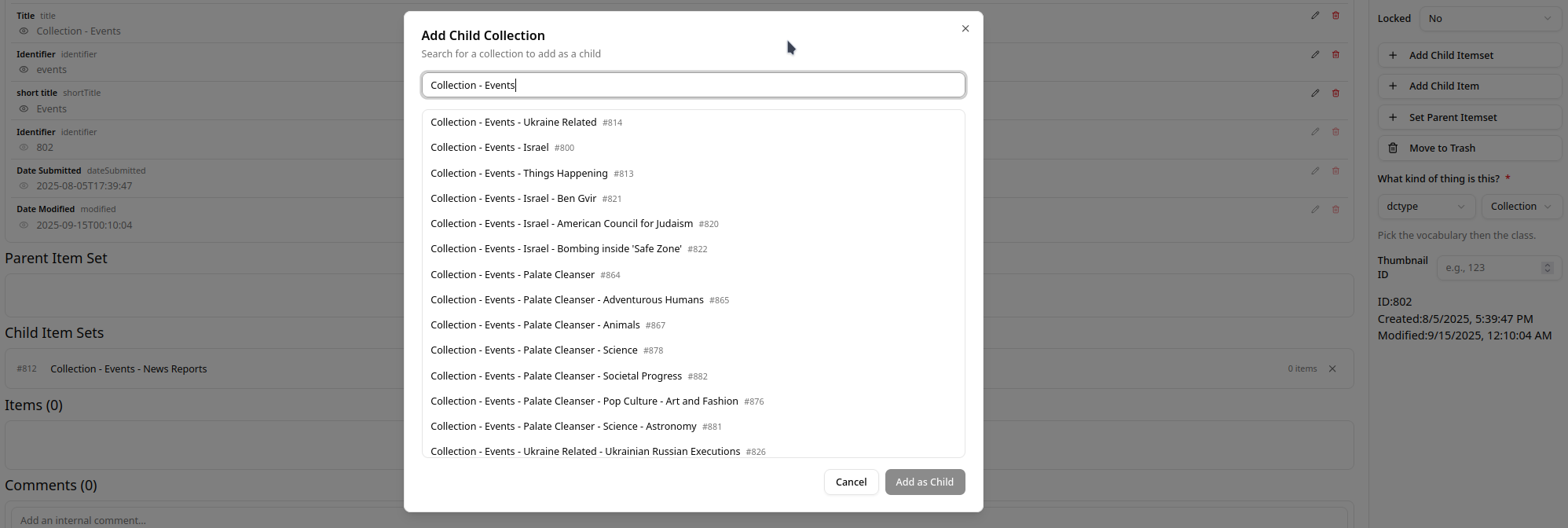
From here, we can select as many Item Sets to add as we want. Just highlight what you want, and click the "Add as Child" button to continue.
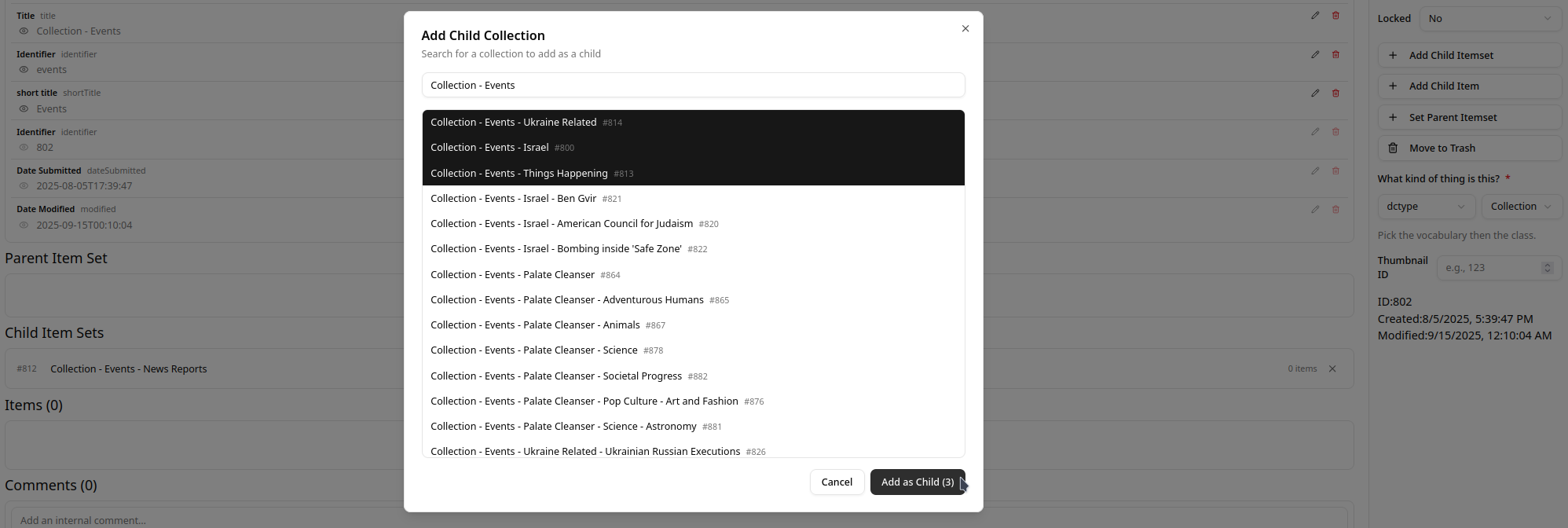
As soon as the dialog closes, the page will refresh, and the new children will appear.
Setting the Parent
The process is the same as adopting children, except only one Item Set can be selected in the dialog.
Warning
When you use the dialog to bulk add children, there is currently no filter option. So if you add a child who already has a parent, that parent will be replaced. This action is recorded in the Activity Log.
Filtering
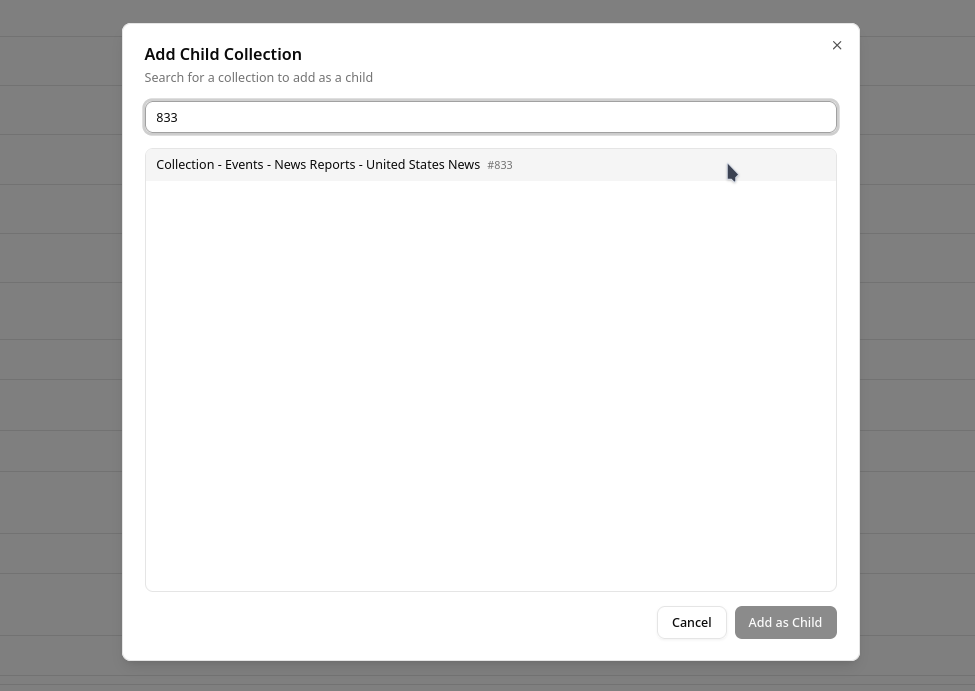
For both setting the parent and adding children, there is the option to search by the ID of an object directly. In the image below, the object ID of this Item Set is boxed.

With this, we can filter like so: